Connection Problems
If you are facing connection errors such as 10060, 10061, 10054, 444, 11001, 110, 1101, or 1102, this page provides practical solutions to fix the problem.
Repair the Client
This process can fix corrupted files or configurations that are preventing GLA from connecting correctly.
You can do this in two ways:
- Through the game client itself:
- Open the game.
- Click the hammer icon in the top right corner.

- Wait until the repair reaches 100%.
- Using the "Repair Grand Line Adventures" program:
This program is installed along with the game. To access it, do one of the following:
- Open the Windows Start menu and search for: Repair Grand Line Adventures
- Or press Windows + R and paste the path below:
%APPDATA%\Microsoft\Windows\Start Menu\Programs\Grand Line Adventures\Repair Grand Line Adventures.lnk
- Wait for the repair to reach 100%.
Tip: Before trying the methods on this page, we recommend repairing the game client.
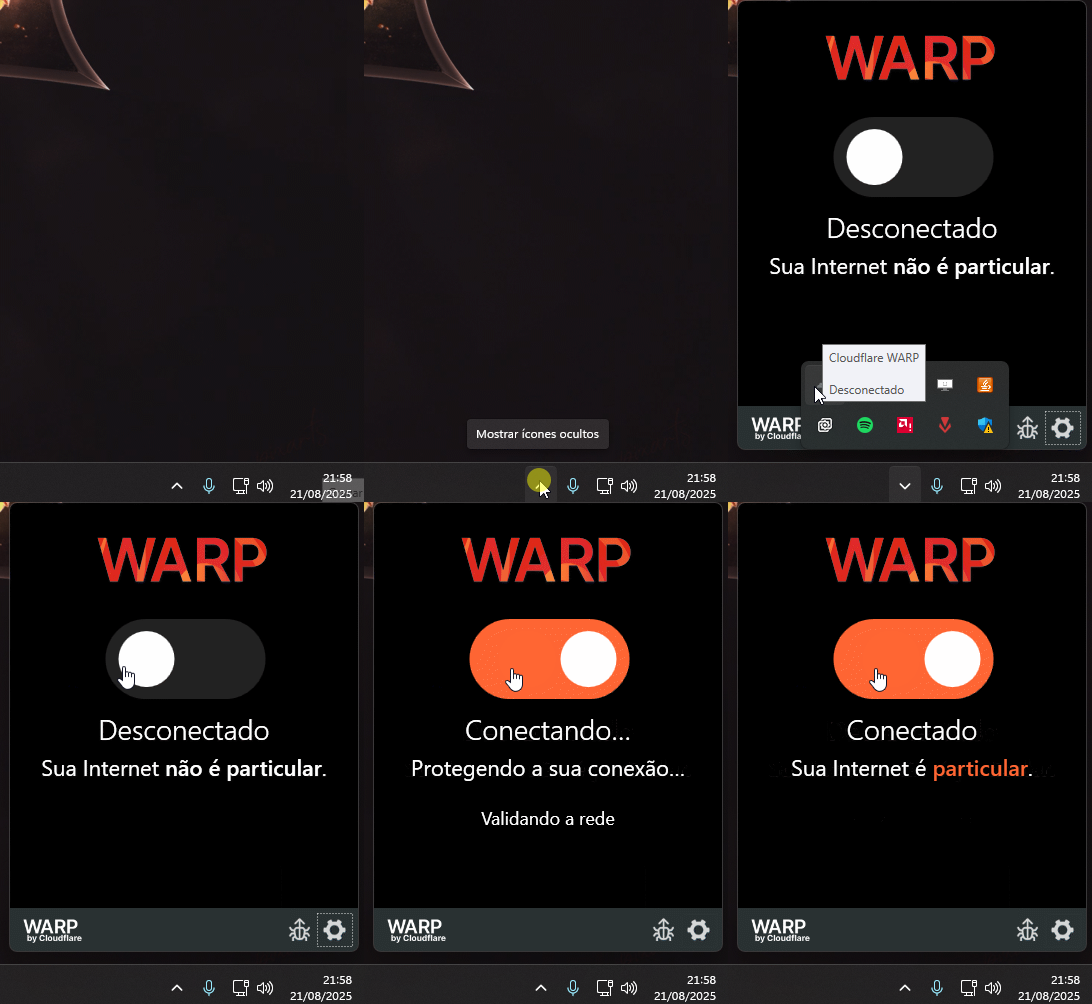
Cloudflare WARP
Attention: this program is recommended for users experiencing high connection loss or errors preventing game access, such as the "Connection failed (444)" warning.
Follow the steps below to install and use WARP:
- Go to the website: https://one.one.one.one/
- Download the version compatible with your device.
- Install the program and open it (the icon will appear in the taskbar).
- Click to connect WARP.
After connecting, try opening the game again.
Disable Antivirus
Windows Defender or other paid antivirus software can interfere with the game's connection. In some cases, they mistakenly detect the game as a threat (false positive) and block its internet connection.
If you suspect this is the issue:
- Temporarily disable your antivirus and firewall.
- Open the game and test.
- If it works, add Grand Line Adventures to the antivirus exclusion list to prevent future blocks.
This ensures the game has full network access without interference.
Warning: Never leave your antivirus disabled permanently.
Renew IP Address and DNS
Renewing the IP and flushing the DNS cache can help fix network issues affecting the connection to the game.
Follow the steps below:
- Press Windows + R, type
cmd, and press Enter to open the Command Prompt. - In the Command Prompt, type the following commands in order, pressing Enter after each one:
ipconfig /releaseipconfig /renewipconfig /flushdns
- Close the Command Prompt and test the connection by opening the game again.
Note: The ipconfig /release command will temporarily disconnect your internet. The connection will be restored in the next step.
Change DNS
Changing the DNS can improve connection stability and resolve server resolution issues.
Follow the steps below to change the DNS manually:
- Open the Control Panel and go to Network and Internet > Network and Sharing Center.
- Click on Change adapter settings in the side menu.
- Right-click on your active connection (Wi-Fi or Ethernet) and select Properties.
- Select Internet Protocol Version 4 (TCP/IPv4) and click on Properties.
- Check the option Use the following DNS server addresses and enter the following values:
- 8.8.8.8 as the Preferred DNS server.
- 8.8.4.4 as the Alternate DNS server.
- Click OK and restart your connection if necessary.
Clear Network Cache and Corrupted Settings
If you have tried the previous instructions and are still experiencing connection issues, the Windows network cache might be corrupted.
- Open Command Prompt as administrator – type
cmdin the Start menu, right-click, and select Run as administrator. - Type the following commands, one by one, pressing Enter after each line:
netsh winsock resetnetsh int ip resetnetsh winhttp reset proxy
- Restart your computer after executing the commands.
Summary: These commands clear old proxy, DNS, and network settings, helping to restore the connection without needing to format or reinstall drivers.
Check for Activated Proxy or VPN
Some programs or configurations can activate a proxy or VPN in Windows without the user's knowledge, which can interfere with the connection to the game.
Follow the steps below to check and fix it:
- Press Windows + R, type
inetcpl.cpl, and press Enter. - In the window that opens, go to the Connections tab and click on LAN settings.
- Uncheck the option Use a proxy server for your LAN.
- Ensure the option Automatically detect settings is checked.
- Click OK to confirm and test the connection again.
Update Network Driver
Outdated or corrupted drivers can cause connection instability, especially in online games.
Follow the steps below to update your network driver:
- Press Windows + X and select Device Manager.
- Expand the Network adapters section.
- Right-click on the main adapter (Wi-Fi or Ethernet) and select Update driver.
- Choose the option Search automatically for drivers.
- After completion, restart your computer and test the game again.
Restart the Router Correctly
Simply turning the router off and on quickly does not always solve network problems. To force a clean reconnection, it is important to restart it correctly.
Follow the steps below:
- Unplug the router from the power outlet for at least 30 seconds.
- Wait this time and plug it back in.
- Wait until the connection returns to normal (lights stabilized) and then open the game.
Summary: This restart forces the release of old IPs and can fix persistent connection failures.
If nothing works, we recommend just waiting. The problem might be with the game servers.
Keep an eye on our official Discord, where announcements are posted whenever there are instabilities.